> ## Documentation Index
> Fetch the complete documentation index at: https://docs.cudocompute.com/llms.txt
> Use this file to discover all available pages before exploring further.
# Dify
> Build LLM Chatbots on CUDO Compute.
## What is Dify?
Langgenius Dify is a cutting-edge platform designed to enhance the capabilities of large language
models (LLMs) by integrating them with external tools and resources. This integration allows Dify to
autonomously perform complex tasks, such as web browsing and data gathering, with precision and
efficiency. By leveraging advanced reasoning and adaptive capabilities, Dify enables LLMs to think
critically and execute multi-step operations, making it an invaluable tool for developers and
enterprises looking to harness the full potential of AI. The platform's ability to gather real-time
information and iterate on tasks ensures that users can achieve high levels of accuracy and
effectiveness in their AI-driven projects. Whether used for research, development, or deployment,
Langgenius Dify offers a robust solution for enhancing AI workflows and achieving superior outcomes.
## Get started
Go to the apps section in the CUDO Compute console and click either the small, medium or large instance of Dify.
Small and Medium include deepseek-r1:32b 32 Billion parameter LLM; and large includes the llama3.3 70 billion parameter LLM.
Once deployed wait a few minutes and then visit the public IP of your VM in your browser.
### Create admin account
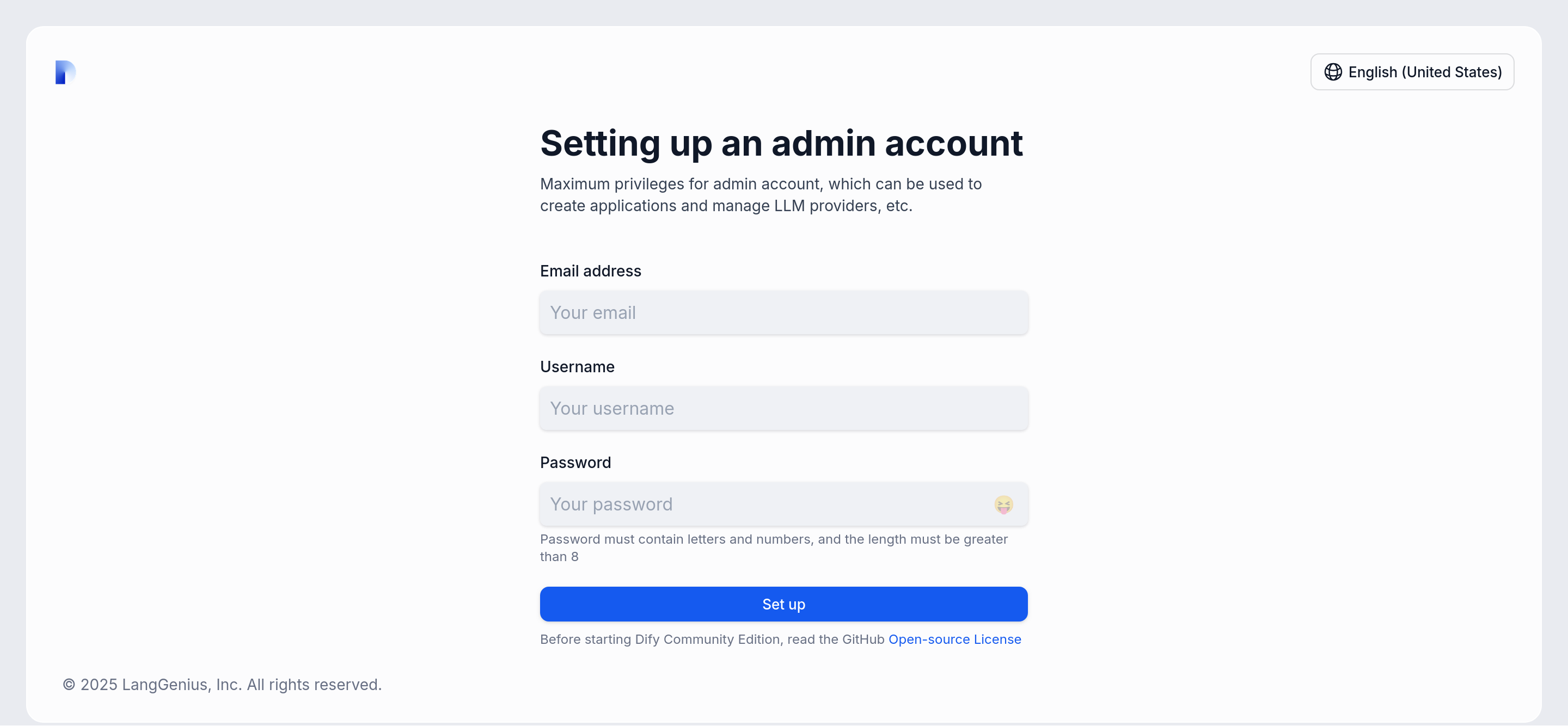 The first user to sign in creates an admin account, you can add other users later and create teams and projects.
### Configure Ollama as a model provider
The first user to sign in creates an admin account, you can add other users later and create teams and projects.
### Configure Ollama as a model provider
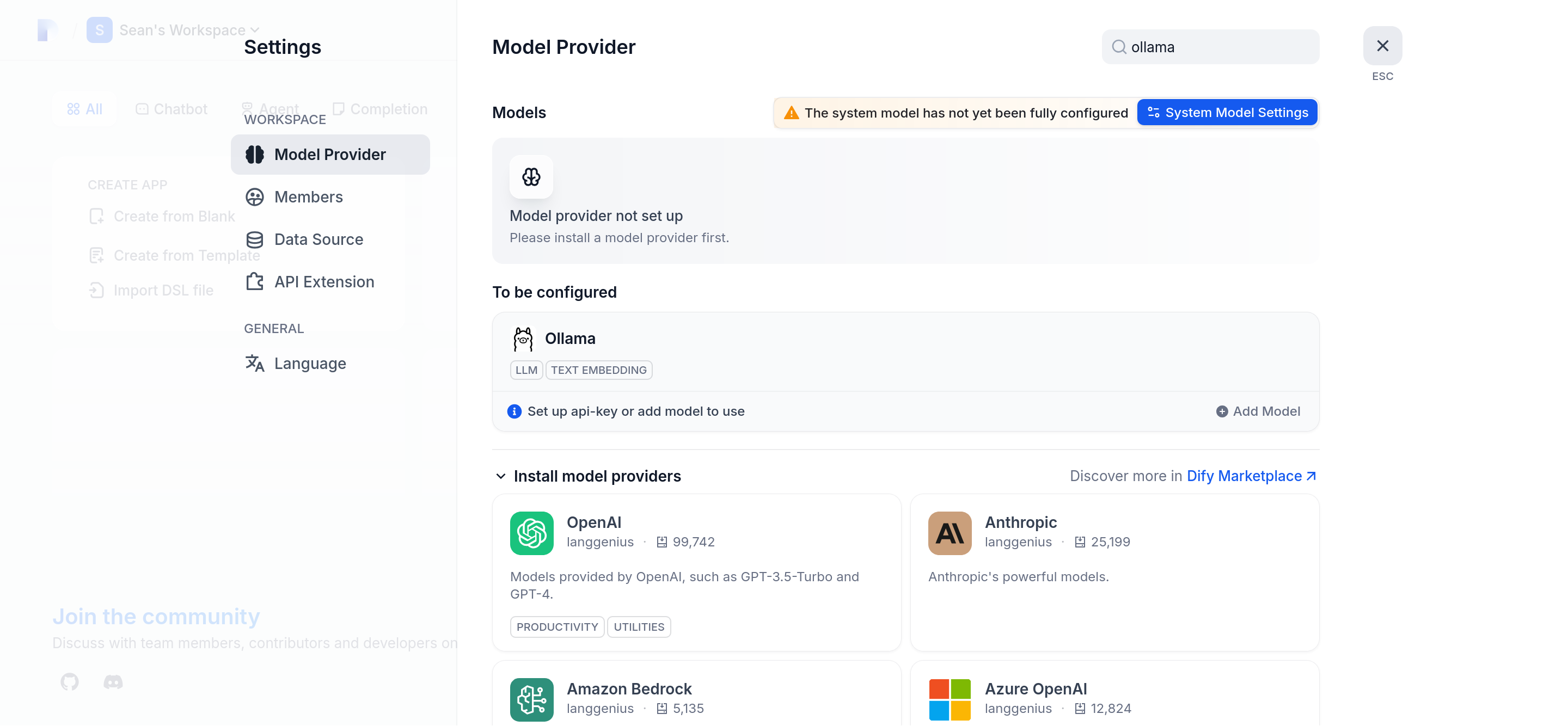 On the right hand side, click your account avatar. From the drop-down menu go to **Settings**.
On the left navigation select **Model provider**, scroll down until you see **Ollama** and click install.
In the Ollama box click **Add model**
On the right hand side, click your account avatar. From the drop-down menu go to **Settings**.
On the left navigation select **Model provider**, scroll down until you see **Ollama** and click install.
In the Ollama box click **Add model**
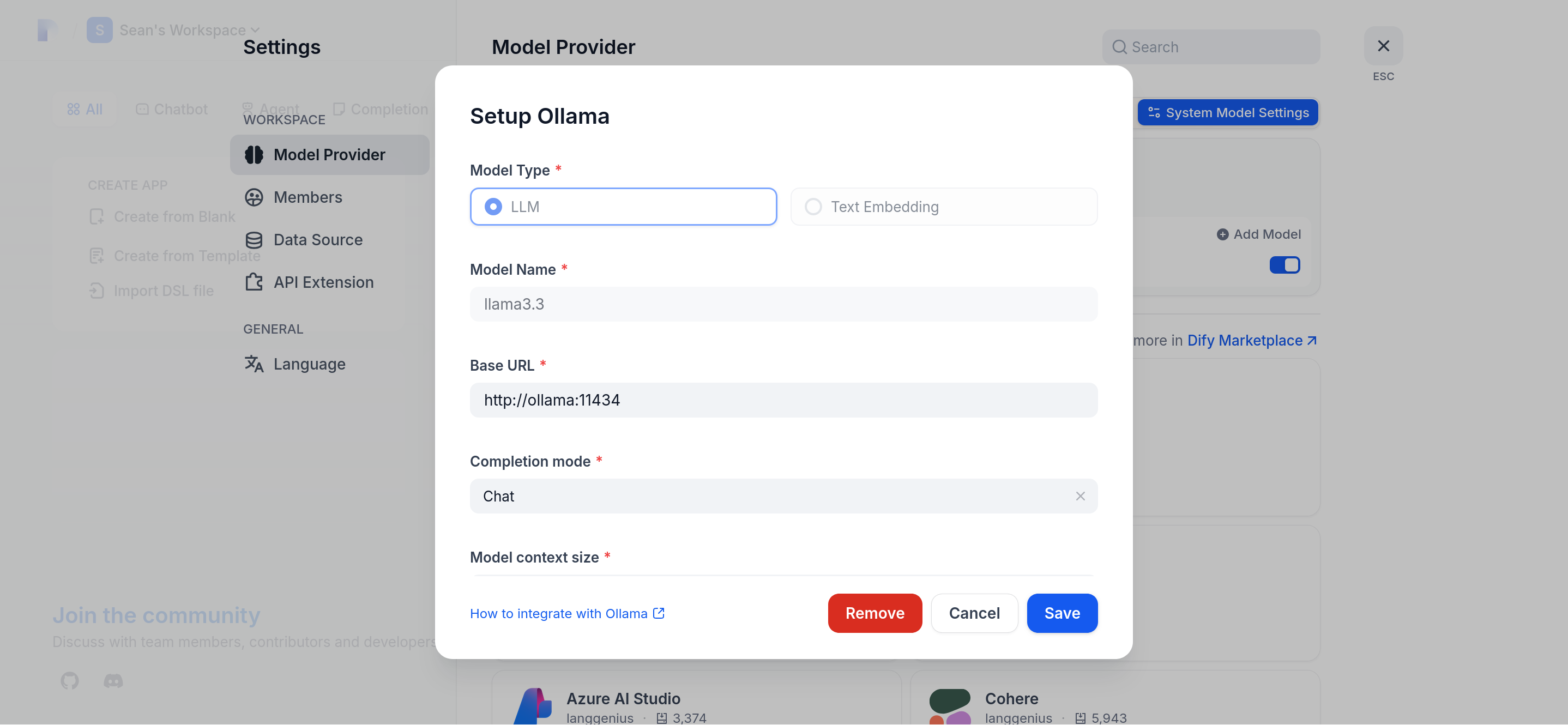 If you are using a small or medium instance enter **deepseek-r1:32b** as the name or for large add **llama3.3** as the name.
Enter `http://ollama:11434` as the Base URL and click **Save**.
### Create a Chat Bot
If you are using a small or medium instance enter **deepseek-r1:32b** as the name or for large add **llama3.3** as the name.
Enter `http://ollama:11434` as the Base URL and click **Save**.
### Create a Chat Bot
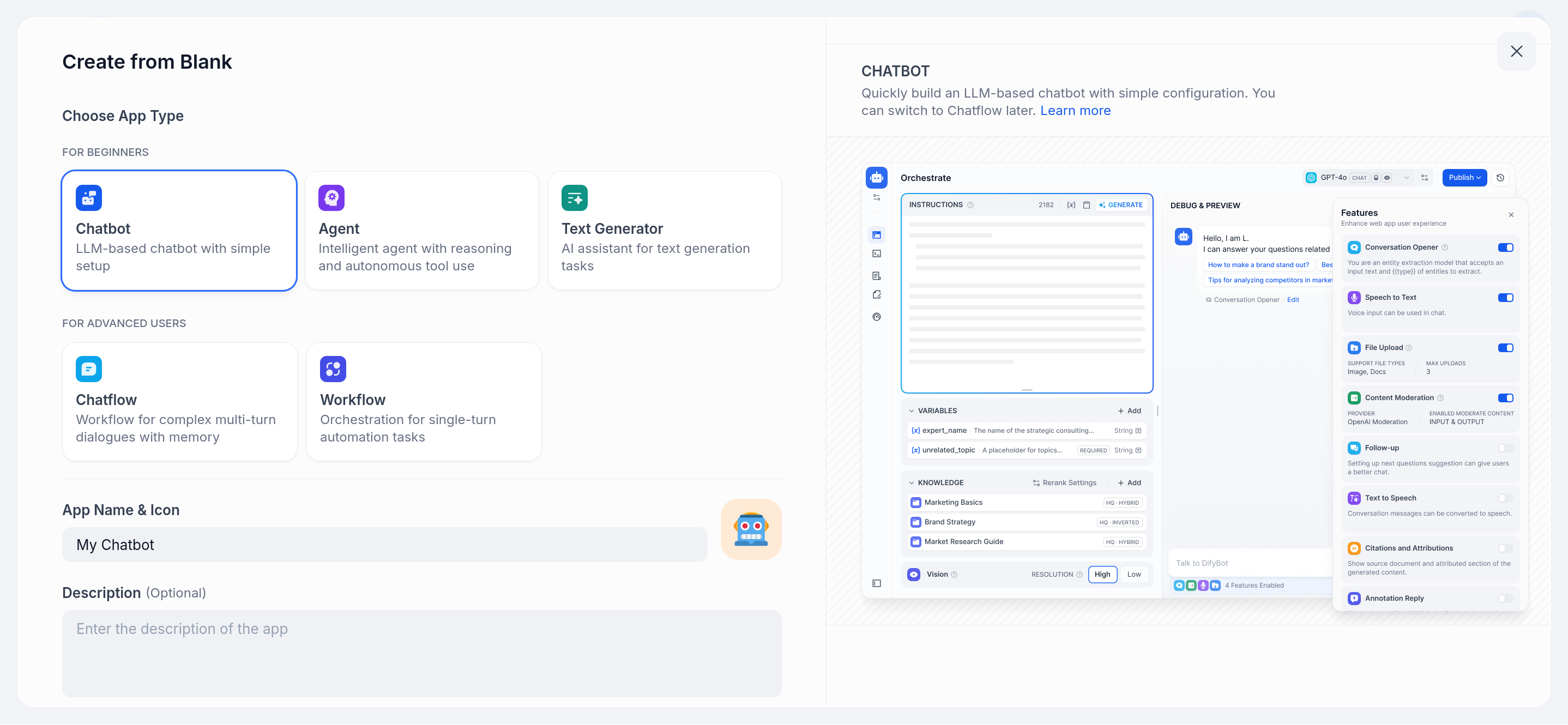 Go to your workspace and click **Create from blank**.
Choose App type as **Chat bot**.
Go to your workspace and click **Create from blank**.
Choose App type as **Chat bot**.
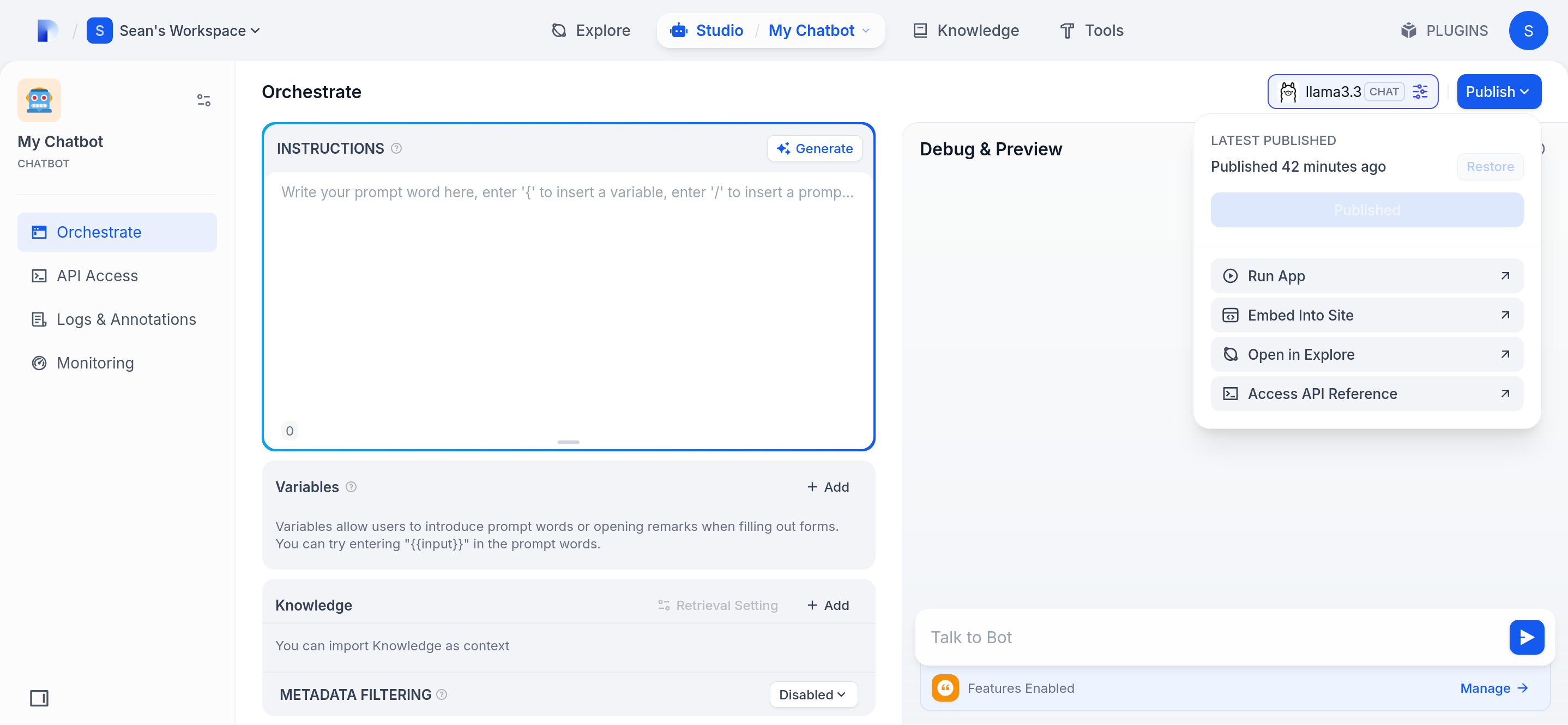 You loaded LLM will automatically be selected, so click **Publish** and go to **Open in Explore**.
## Test it out
You loaded LLM will automatically be selected, so click **Publish** and go to **Open in Explore**.
## Test it out
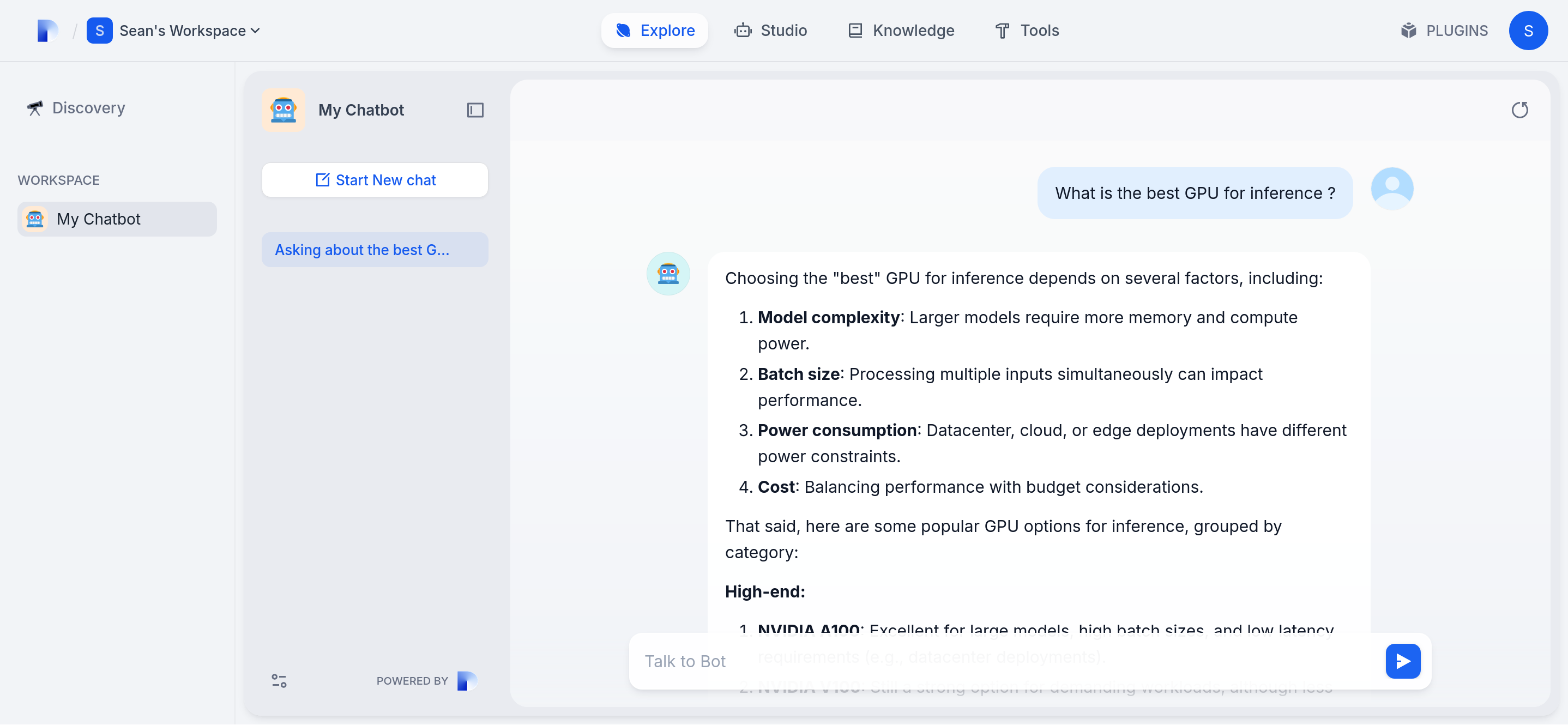 Go to your new chat application and test it out.