> ## Documentation Index
> Fetch the complete documentation index at: https://docs.cudocompute.com/llms.txt
> Use this file to discover all available pages before exploring further.
# Windows Remote Desktop Connection
> Setup up a remote desktop connection with CUDO Compute
## Introduction
Windows Remote Desktop Protocol (RDP) is a proprietary protocol developed by Microsoft that provides users with a graphical interface to connect to another computer over a network connection. RDP allows you to remotely access and control a Windows desktop environment as if you were sitting in front of it, making it a useful tool for using remote cloud computers, it's especially useful for Video Editing, VFX and CAD.
## Prerequisites
* Create a project
## Create a Windows virtual machine
Using the **Create virtual machine Form** start a virtual machine with Windows 10 or 11. Choose a password and save it for later.
## Remote Desktop Connection
On your local Windows machine open the Remote Desktop Connection application. If it is not installed visit the link below to install it:
[Remote Desktop Connection Download](https://learn.microsoft.com/en-us/windows-server/remote/remote-desktop-services/clients/uninstall-remote-desktop-connection?tabs=gui#reinstall-remote-desktop-connection)
This should be compatible with all Windows version including Windows Home.
## Connect
When the remote desktop application opens you will see the following pop-up:
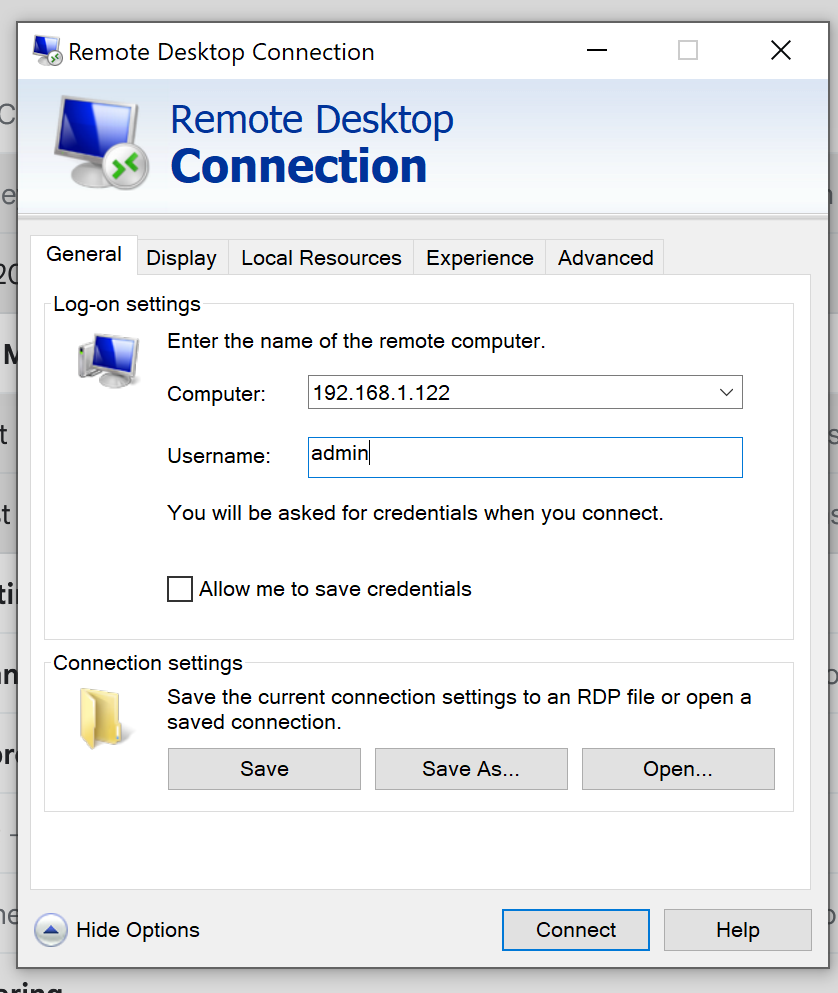 Press the `Show Options` button at the bottom of the panel. Enter the IP Address of the virtual machine you started on CUDO Compute and set the username to `admin`.
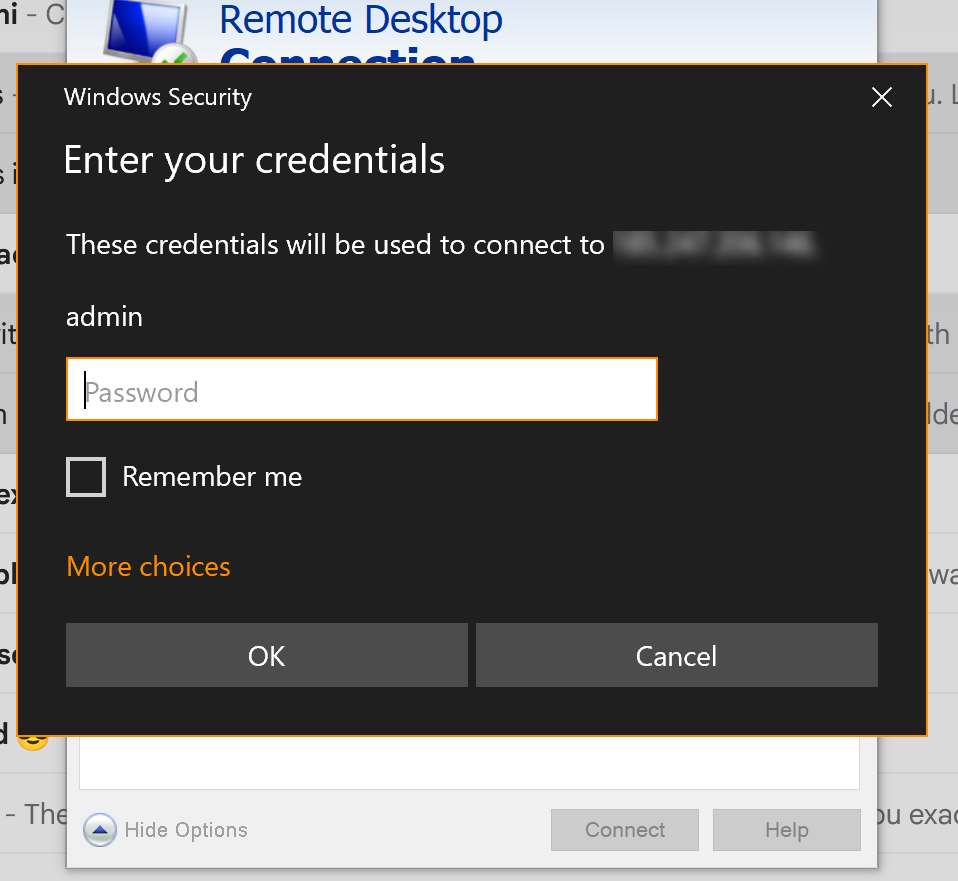
Press connect and enter the password you used in the Create virtual machine form on the CUDO Compute console and check remember me if you are on your personal computer.
Press the `Show Options` button at the bottom of the panel. Enter the IP Address of the virtual machine you started on CUDO Compute and set the username to `admin`.
Press connect and enter the password you used in the Create virtual machine form on the CUDO Compute console and check remember me if you are on your personal computer.
 ## Install drivers
If you are using Windows you may need to install Nvidia drivers, open the web browser on the remote machine and go to:
[https://www.nvidia.com/en-us/drivers/](https://www.nvidia.com/en-us/drivers/)
Type in the name of your virtual machines GPU and find a suitable Windows driver.
## Install drivers
If you are using Windows you may need to install Nvidia drivers, open the web browser on the remote machine and go to:
[https://www.nvidia.com/en-us/drivers/](https://www.nvidia.com/en-us/drivers/)
Type in the name of your virtual machines GPU and find a suitable Windows driver.